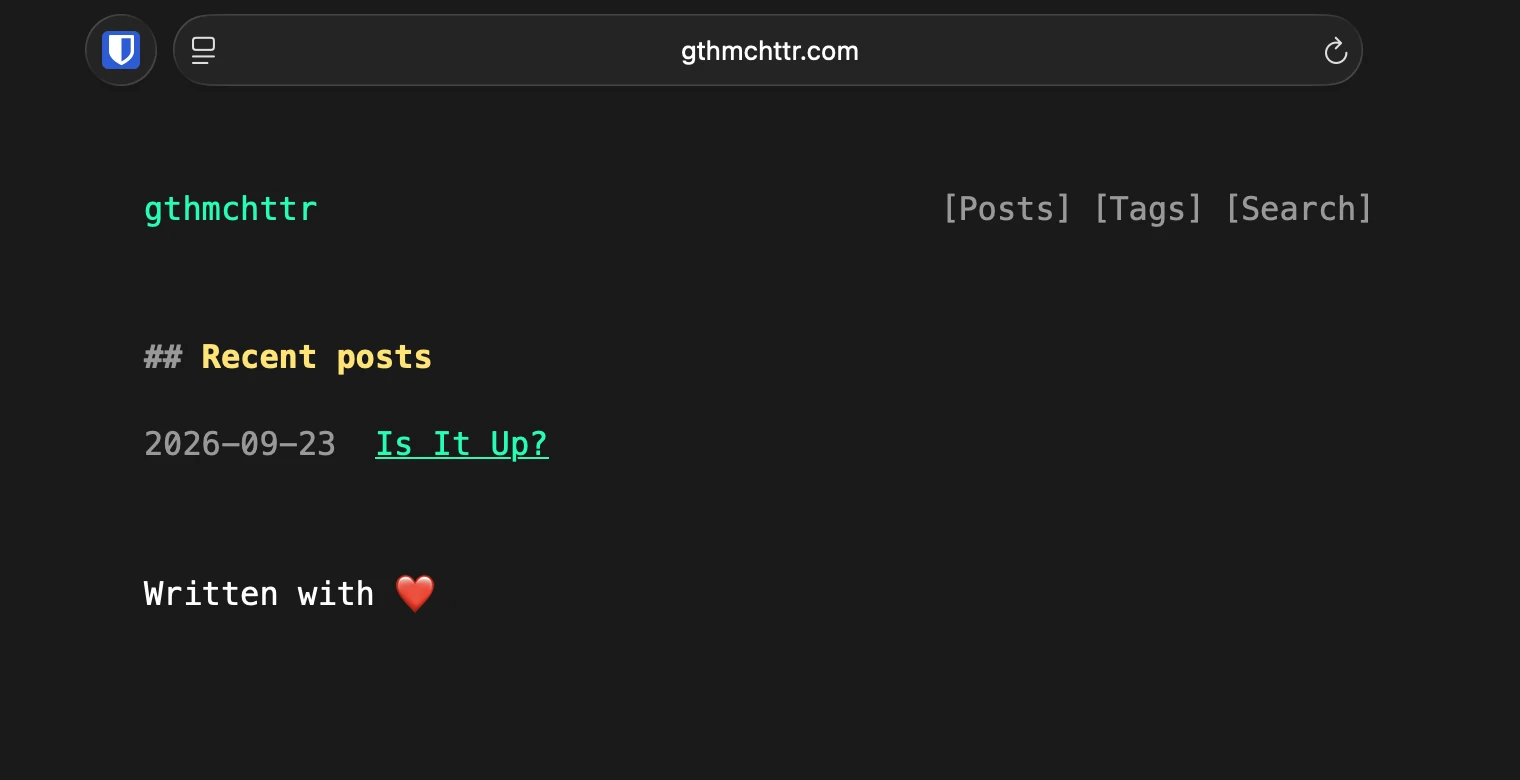
Is It Up?
Table of Contents
A complete yet short guide explaining how this site was setup, this should serve both as a reference for future me and for someone desiring a similar setup.
Tech stack used
| What? | Tech |
|---|---|
| Domain | Cloudflare ($10.46/year) |
| Site Hosting | Github Pages (Free) |
| SSG | Zola (Free) |
Prerequisites
Setup
First set of commands to be run,
# create directory
mkdir ~/gthmchttr.com/
cd ~/gthmchttr.com/

# initialize a zola SSG project in created folder
zola init .
# bring up webserver for testing
zola serve
Check the localhost url emitted by last command (usually http://localhost:1024),
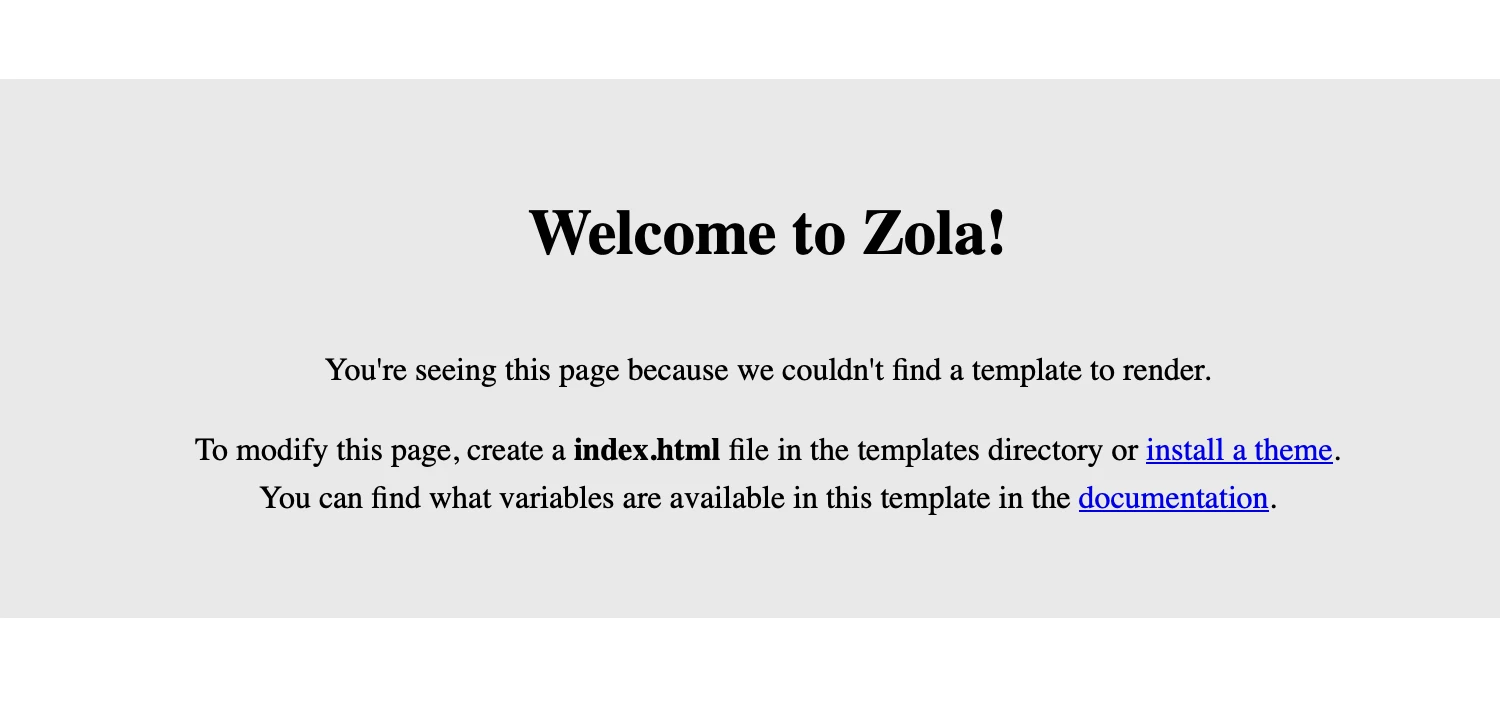
You should see an error which is zola complaining that a theme as not been configured. So let's go ahead and do that -
# initialze a git repository
git init
# add a theme as a submodule
git submodule add https://github.com/gauthamchettiar/zola-yolk.git themes/zola-yolk
I am using my own theme called zola-yolk here (same one that this website is using), feel free to use whatever you like from theme gallery . Most of the commands below are specific to this theme, if you use a different one make sure to check it's documentation for specific installation instruction.
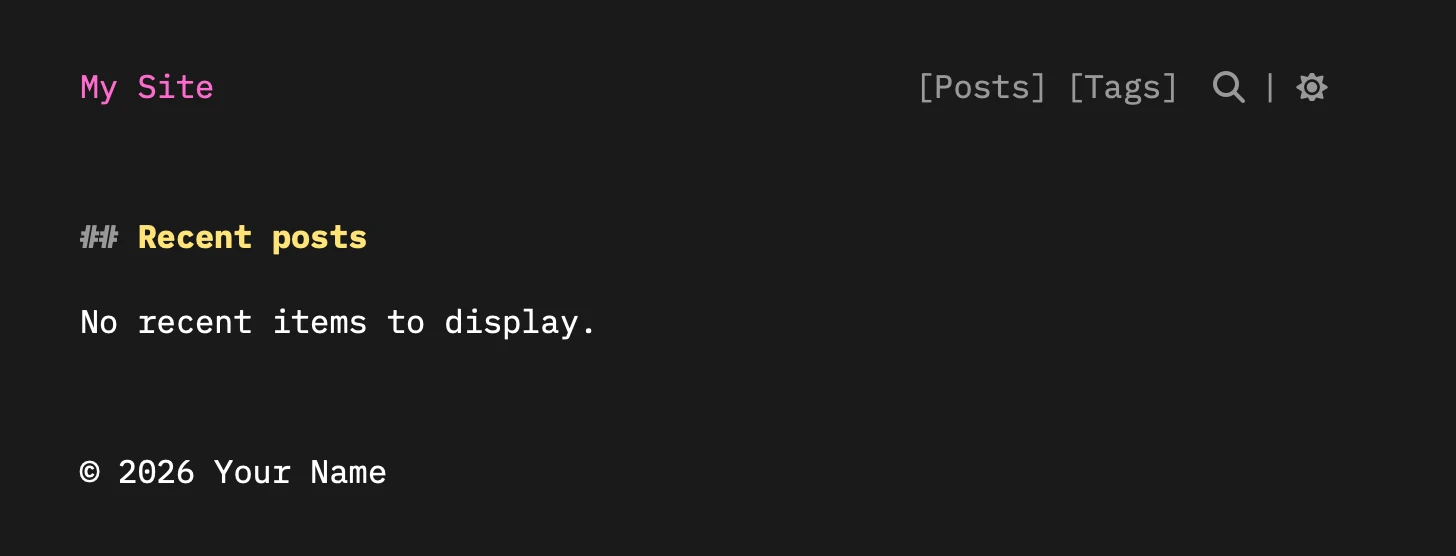
Next, copy over the default configuration file to tell Zola to use the theme:
cat themes/zola-yolk/example_zola.toml > zola.tomlHead back to http://localhost:1024 in your browser, your local site should now render properly!
Authoring
Before you go ahead and add some content let's fix that title!
Open zola.toml file from your project root, and update below settings -
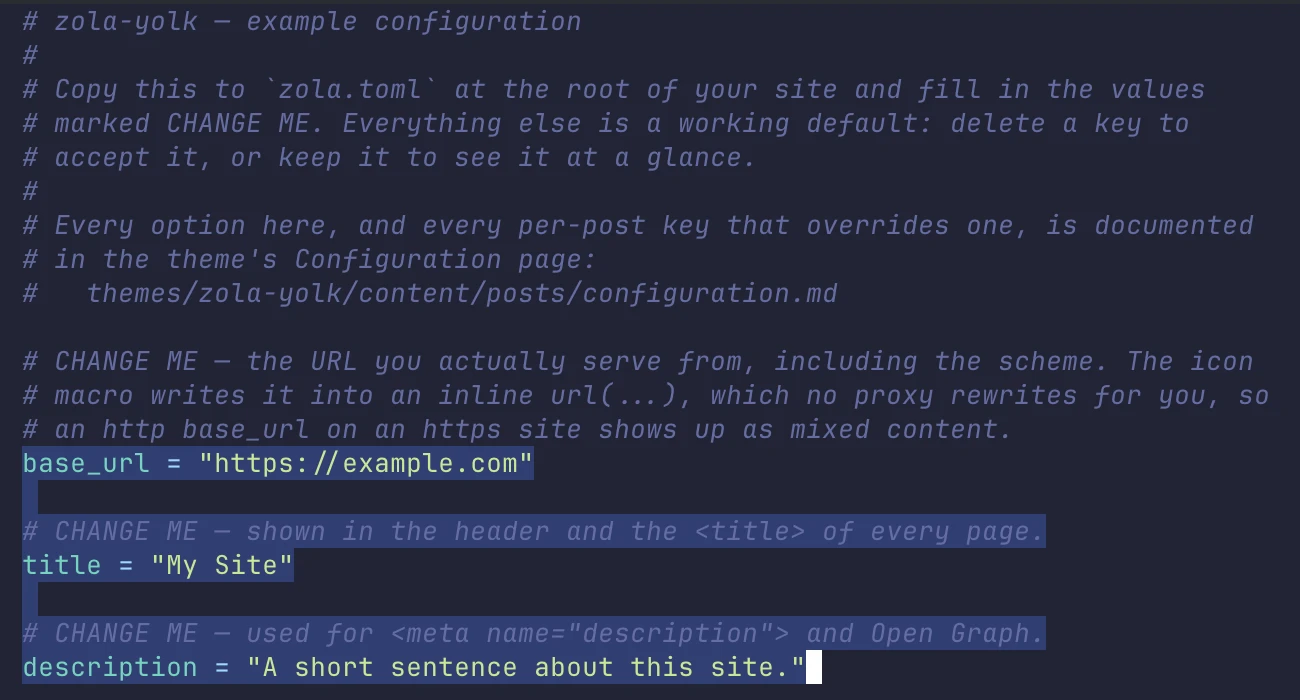
- base_url : if you've bought a domain, this is where you need to put it (otherwise leave it blank for now)
- title : the site title displayed in header and browser tab.
- description : something about your website (used by search engines for SEO)
Next, time to add your first post...
mkdir content/posts/2026/
touch content/posts/2026/20260923_is_it_up.md
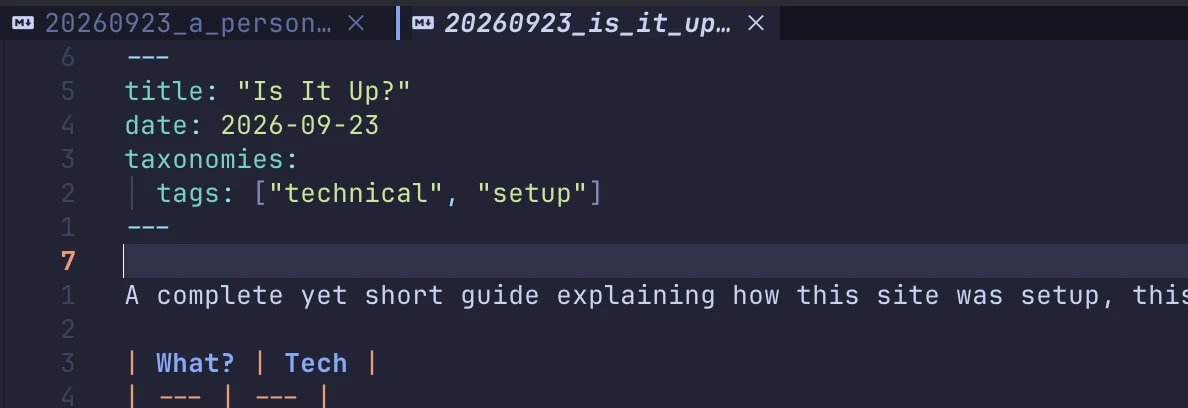
...and add a frontmatter to it -
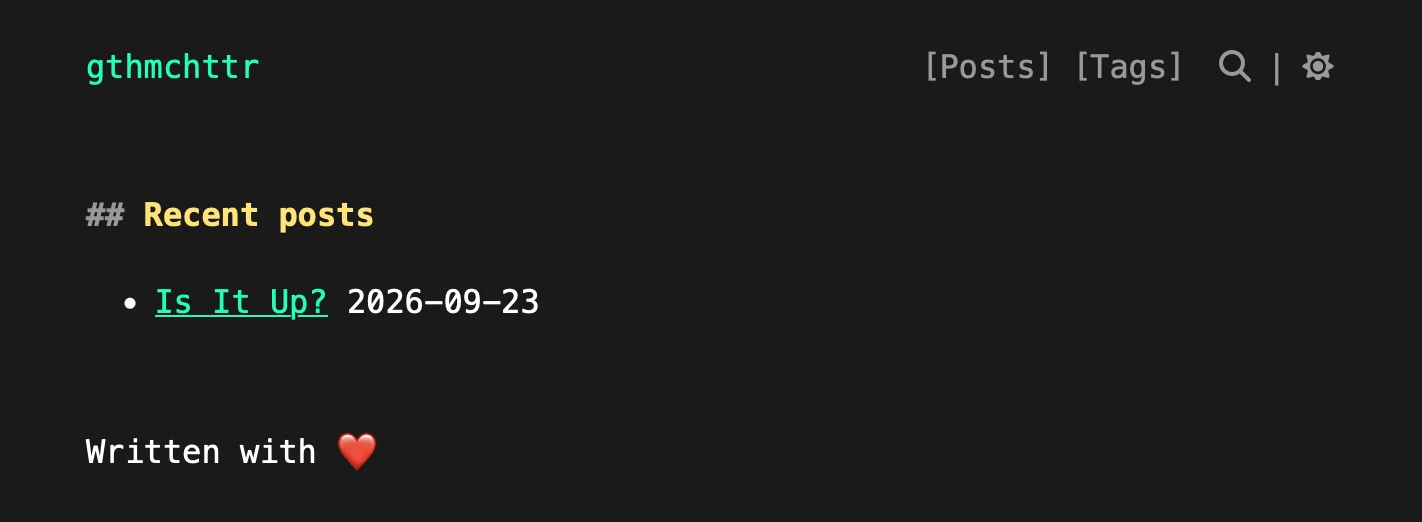
Your post should be up now!
Publishing
So we've got it working locally, next it's time to make it public!
mkdir -p .github/workflows
cp themes/zola-yolk/.github/workflows/deploy.yml .github/workflows/
That should copy over deployment config from theme over. Next, time to create a github repo...
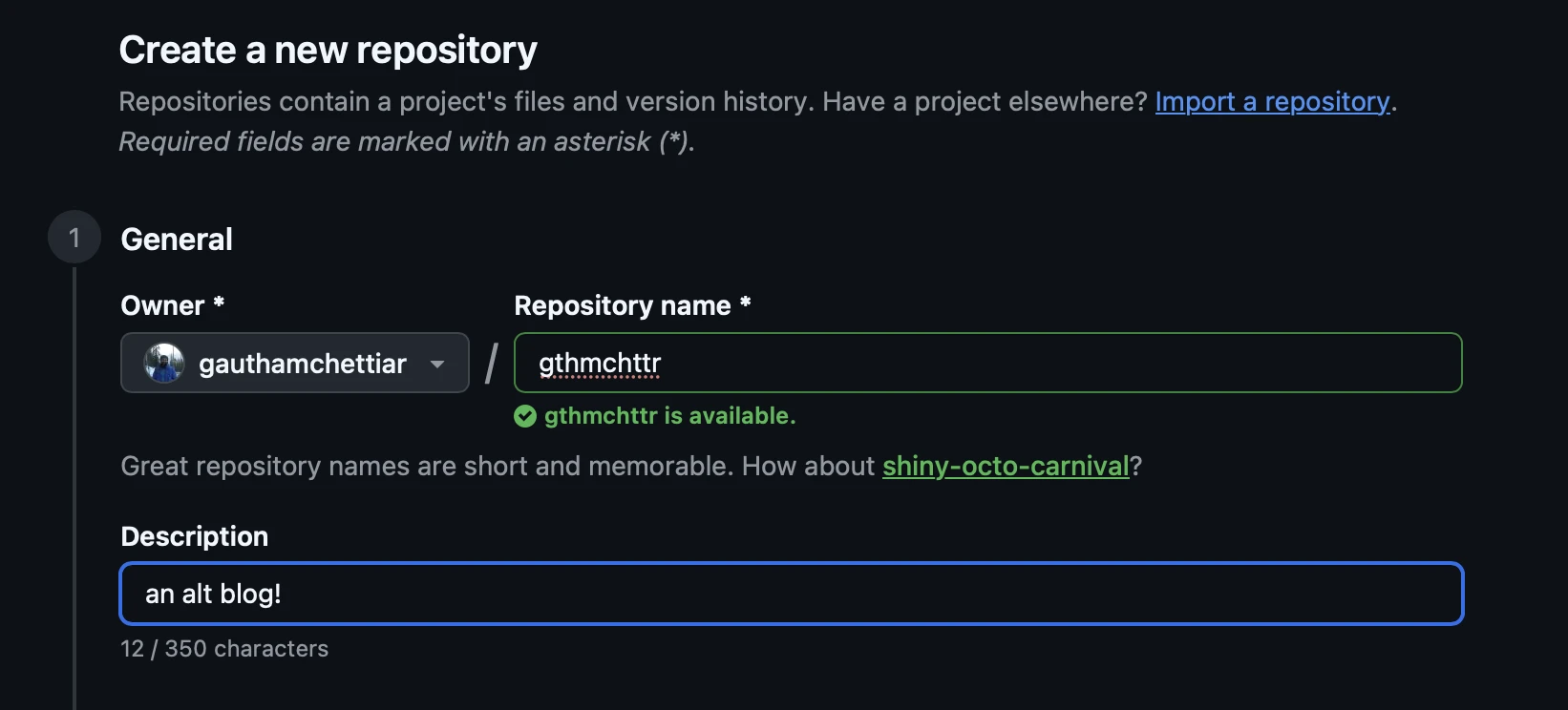
... then push your code,
git add .
git commit -m "post: is it up?"
git remote add origin https://github.com/gauthamchettiar/gthmchttr
git push --set-upstream origin main
Now, if you go and check CI pipeline...
Repo > Actions > 'pages build and deployment' step
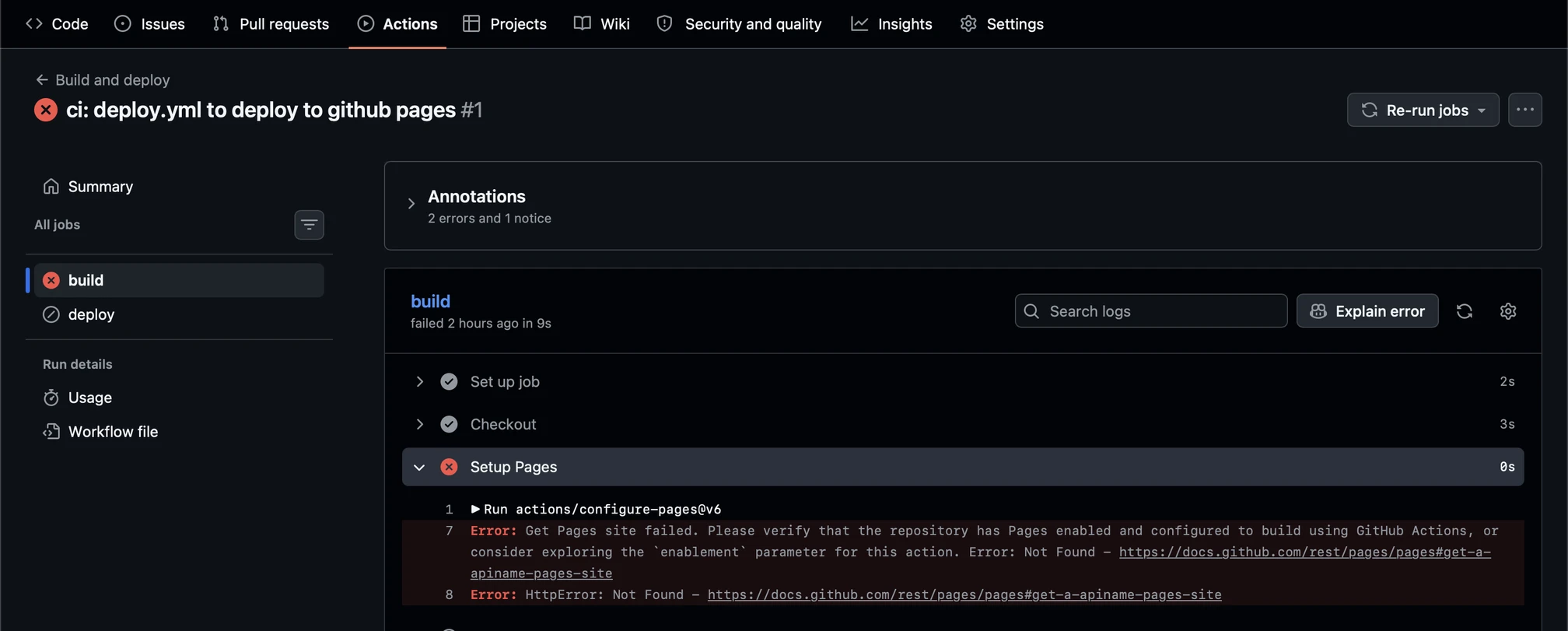 ... it should have failed!
You need to enable one last thing before you are good to go!
Repo > Settings > Pages -> In "Build and Deployment" change source to "Github Actions"
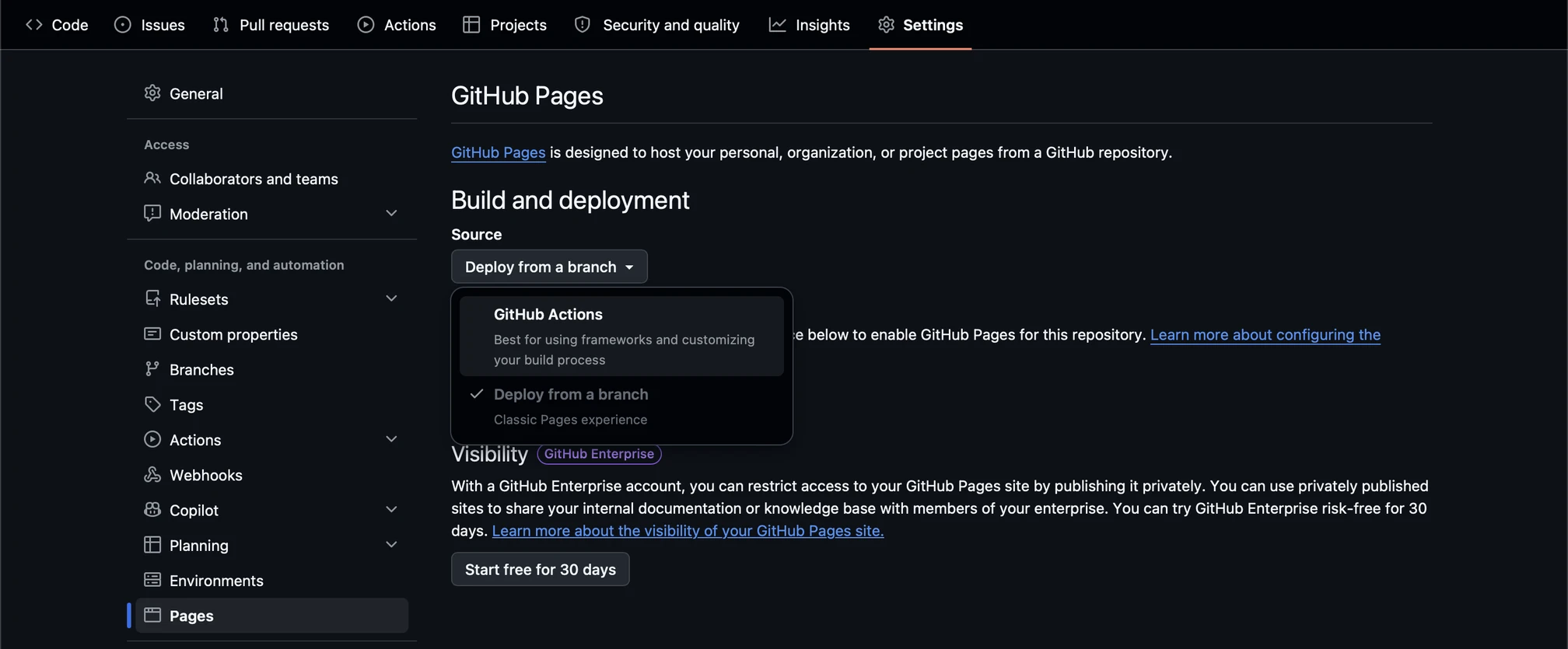
Well, now you can try to re-run jobs...
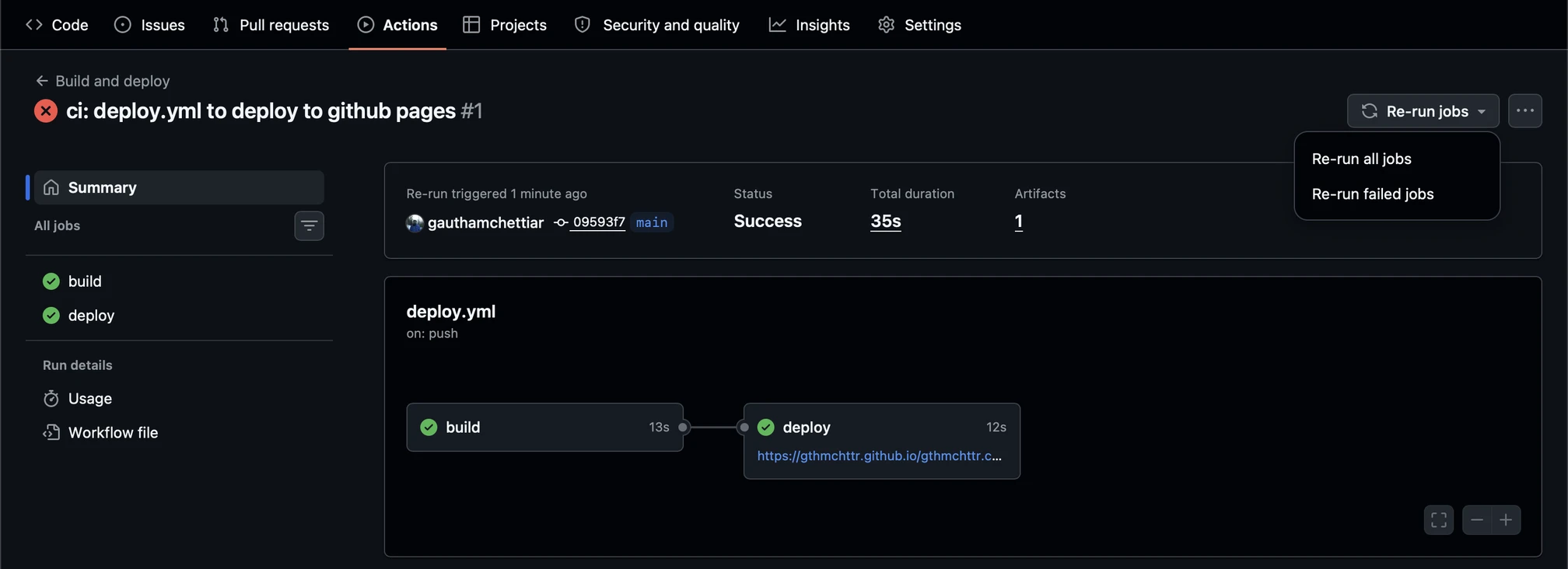 ... and it finally passed!
Time to share your blog with the world...
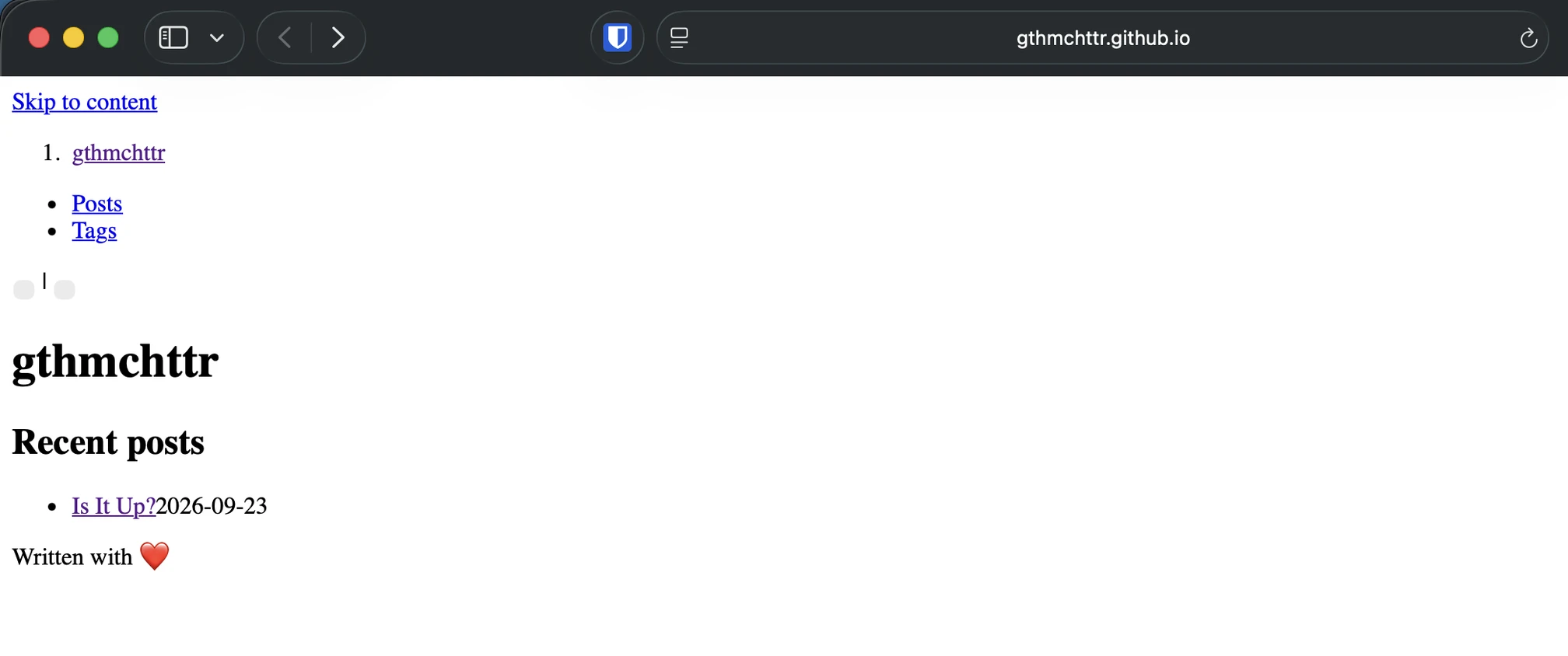 ... or no. This is not what we built!
Setting up Domain
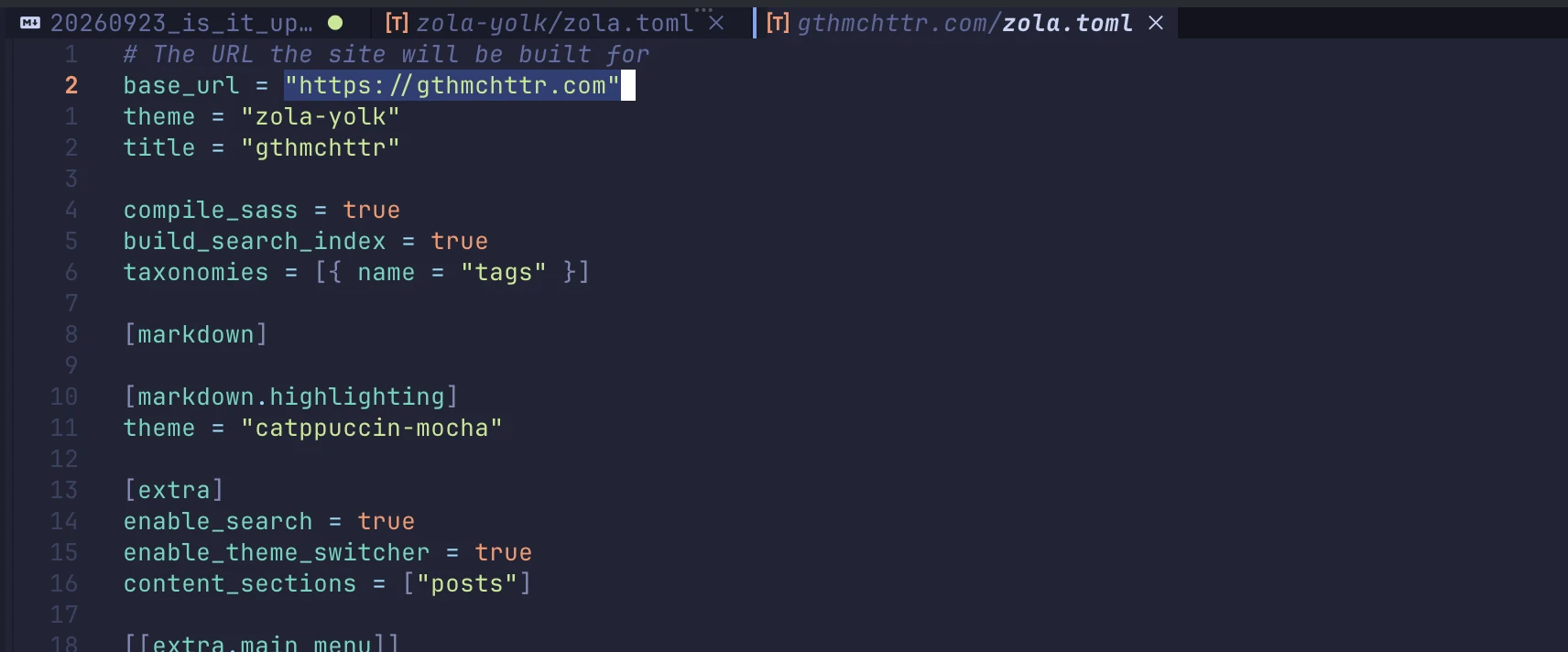
This happens because zola needs a valid base_url in zola.toml to locate static assets like CSS files.
Use Github's Default Domain
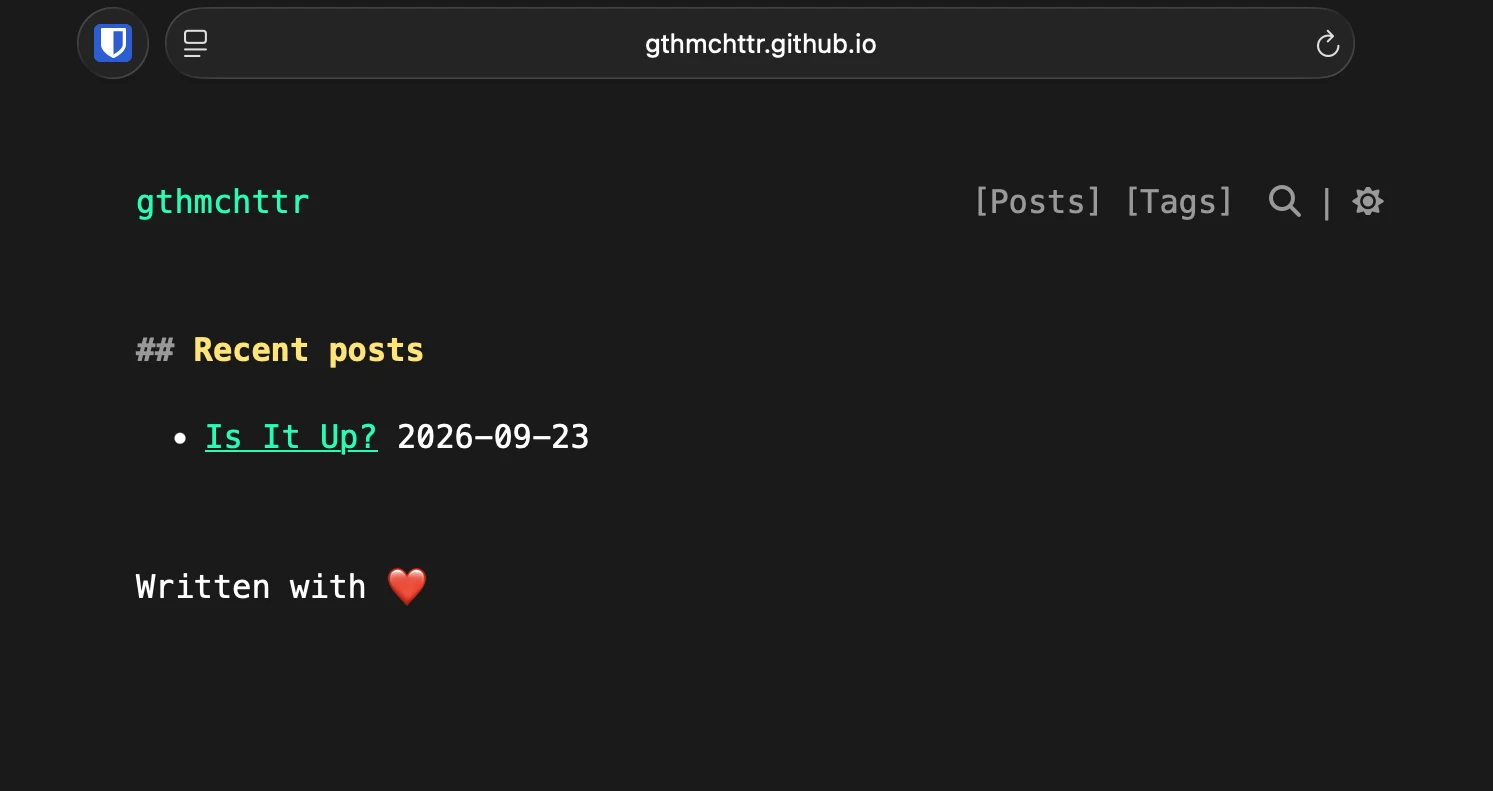
If you are not yet ready to spend extra to buy a domain, all you have to do is to replace base_url setting in zola.toml with actual url you see on github CI page,
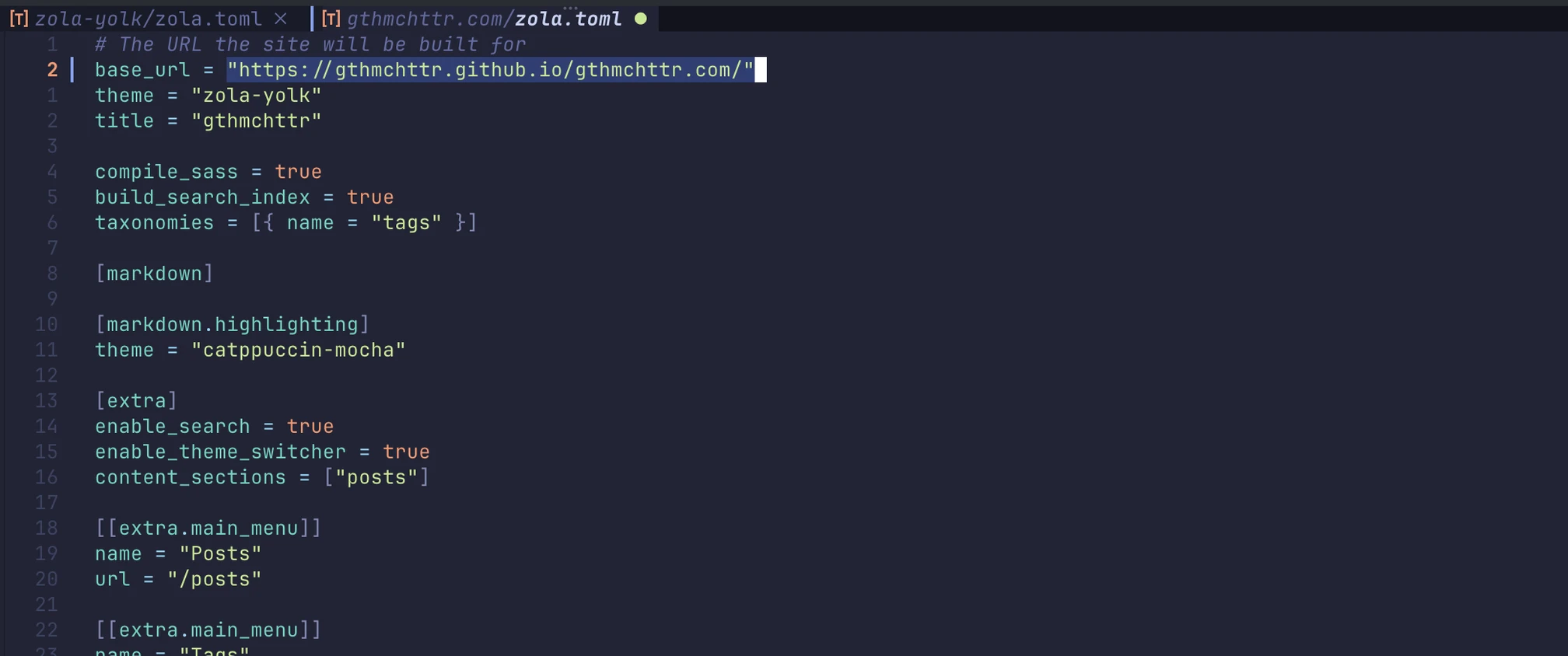
Now once you commit and push your changes,
Use Your Custom Domain
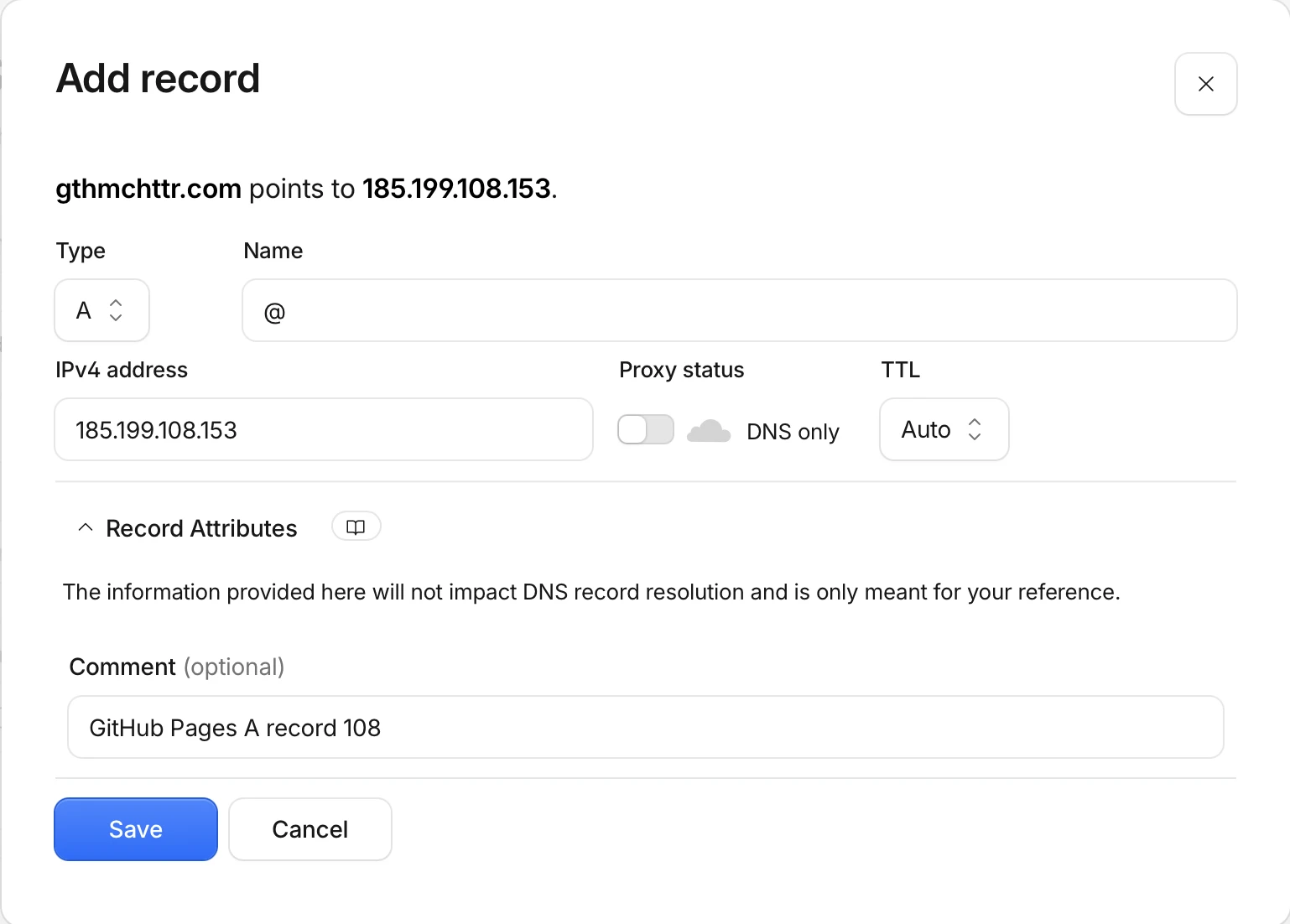
If you own a domain, you need to configure four A records in your domain manager pointing to Github Pages IP Addresses,
| Type | Name | Content |
|---|---|---|
| A | @ | 185.199.108.153 |
| A | @ | 185.199.109.153 |
| A | @ | 185.199.110.153 |
| A | @ | 185.199.111.153 |
Replace base_url setting in zola.toml with your custom URL,
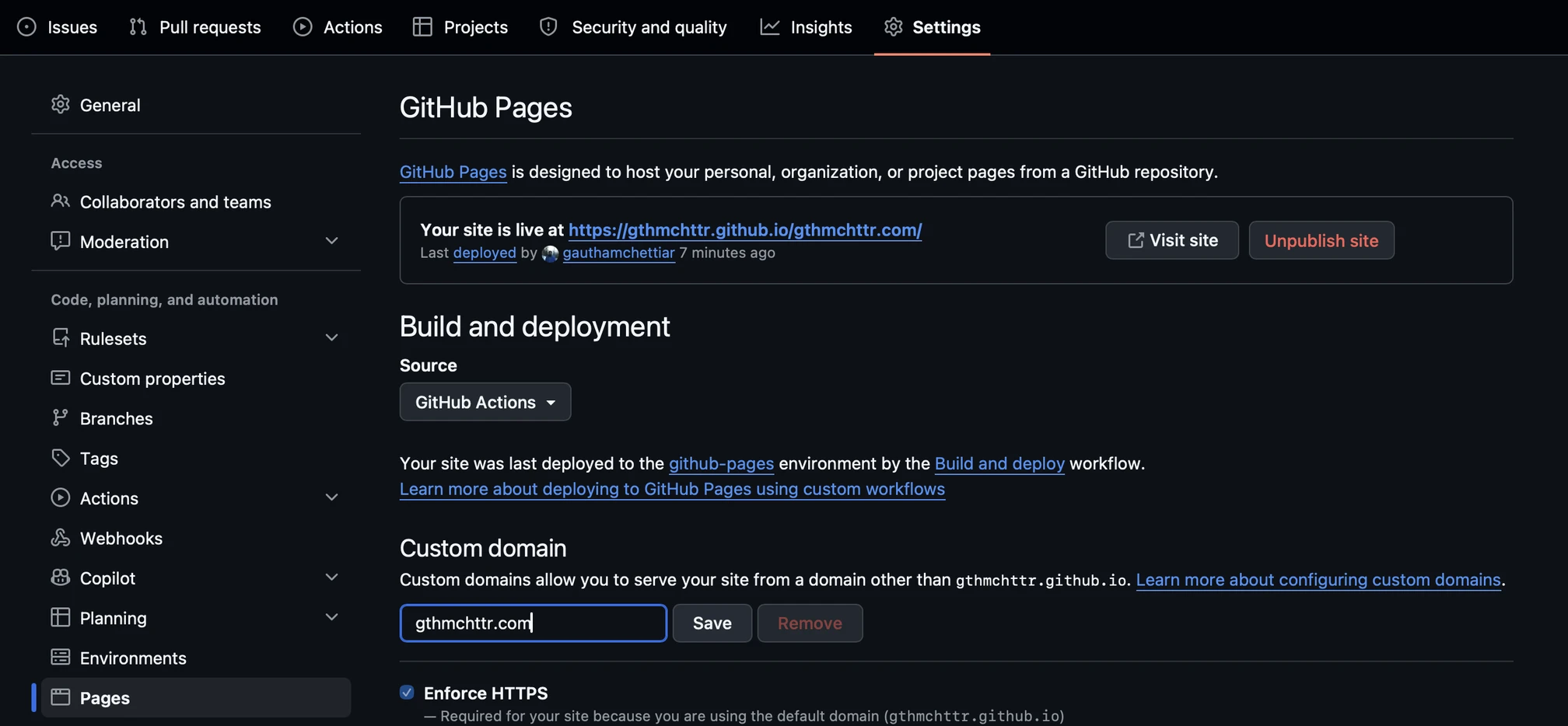
Go back to Repo > Settings > Pages -> Replace "Custom Domain" with your domain,
And that's it, your site should be live and kickin'!